How to Get Started with ODC
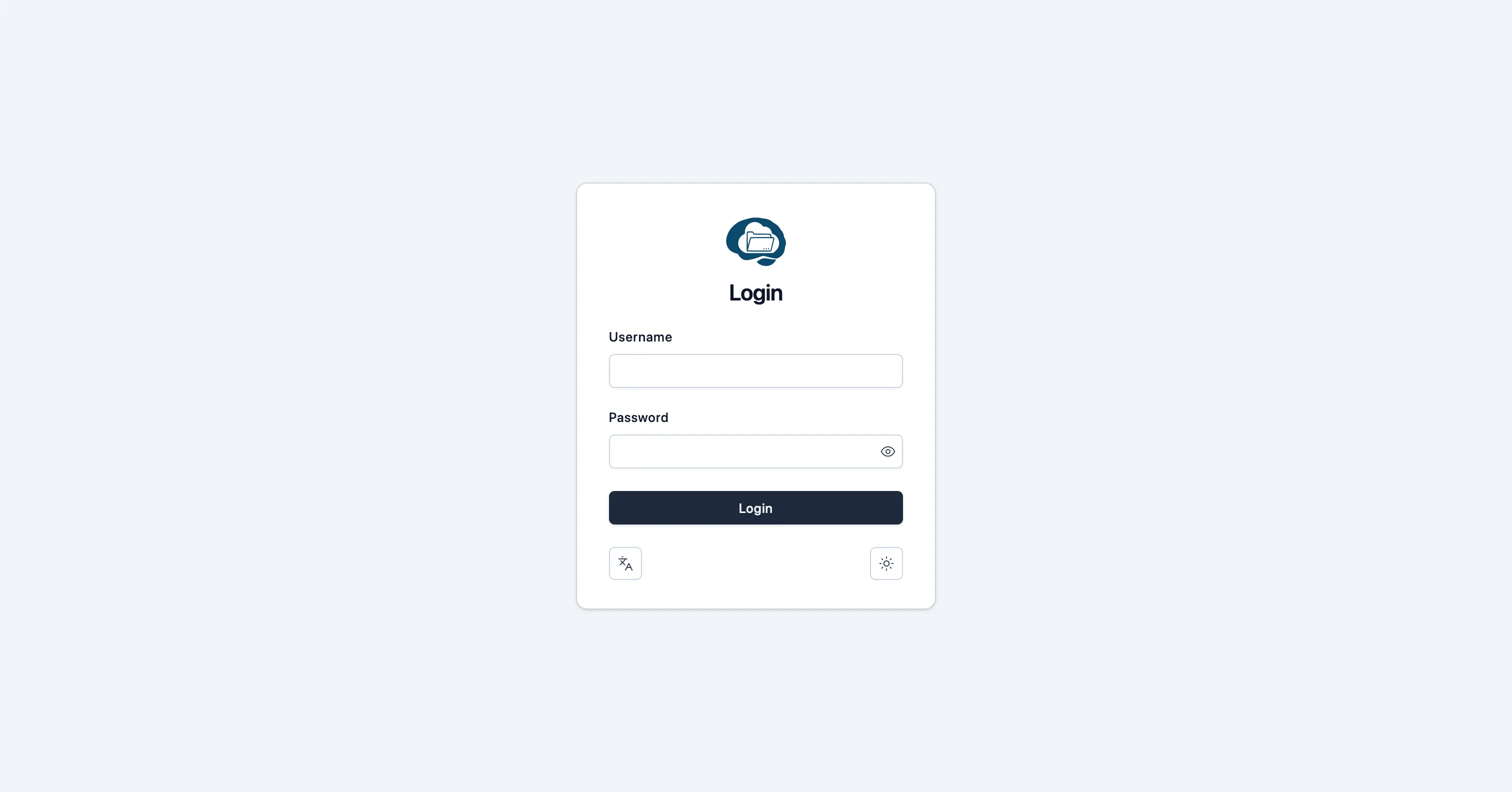
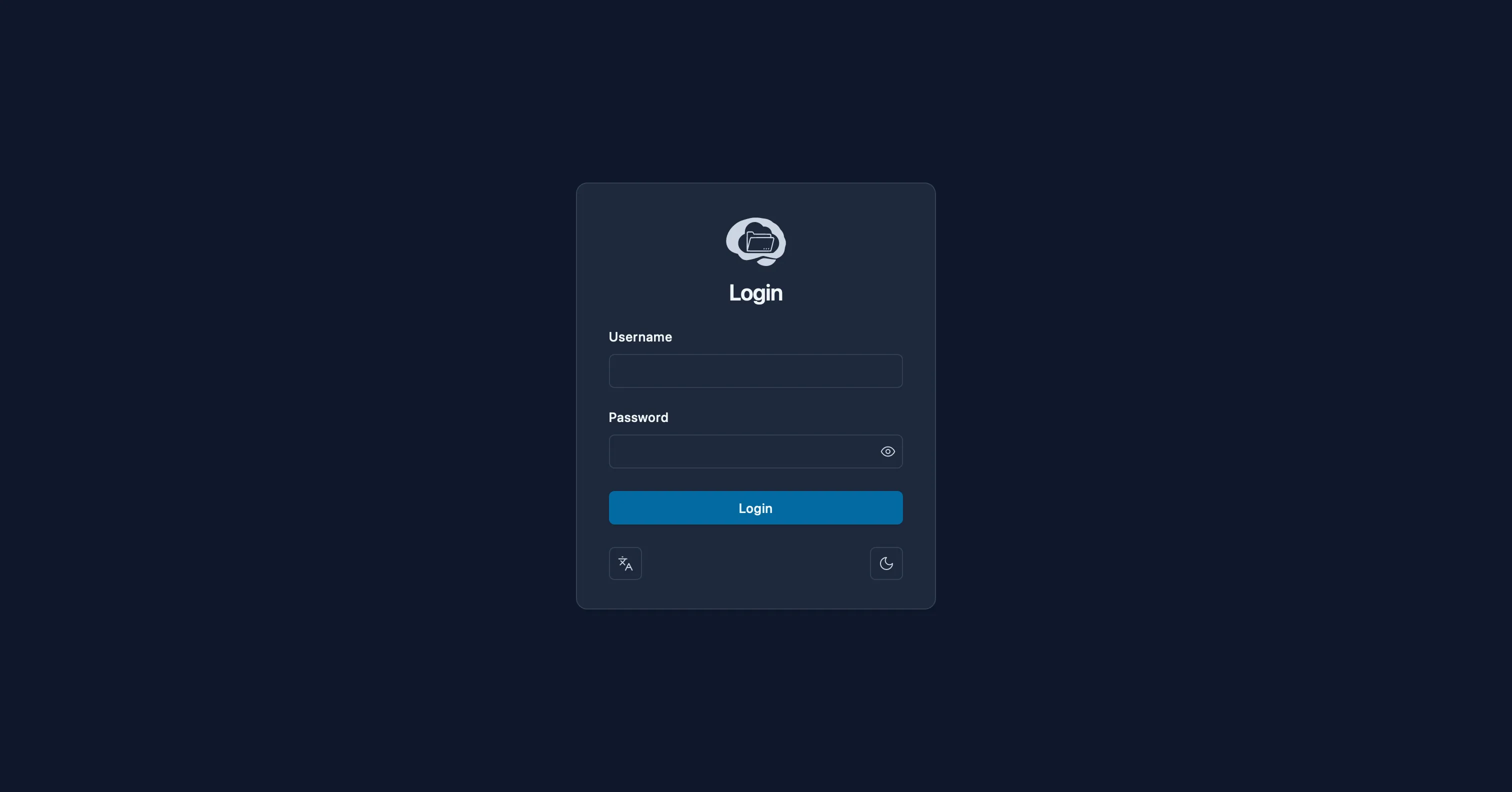
This guide is for people logging into an existing Open Data Capture (ODC) instance for the first time. An instance is the ODC site deployed for your organization, lab, or clinic.
ODC has three roles:
- Admin: manages the instance.
- Group Manager: manages one or more groups and the data collected by those groups.
- Standard User: starts sessions and administers instruments.
For the complete permission model, see the Security reference.
Before You Start
You need:
- The URL for your ODC instance
- Your account credentials
- Access to the group where you will collect or review data
Most users belong to one group. At login, ODC selects the first group assigned to your account.
Navigation
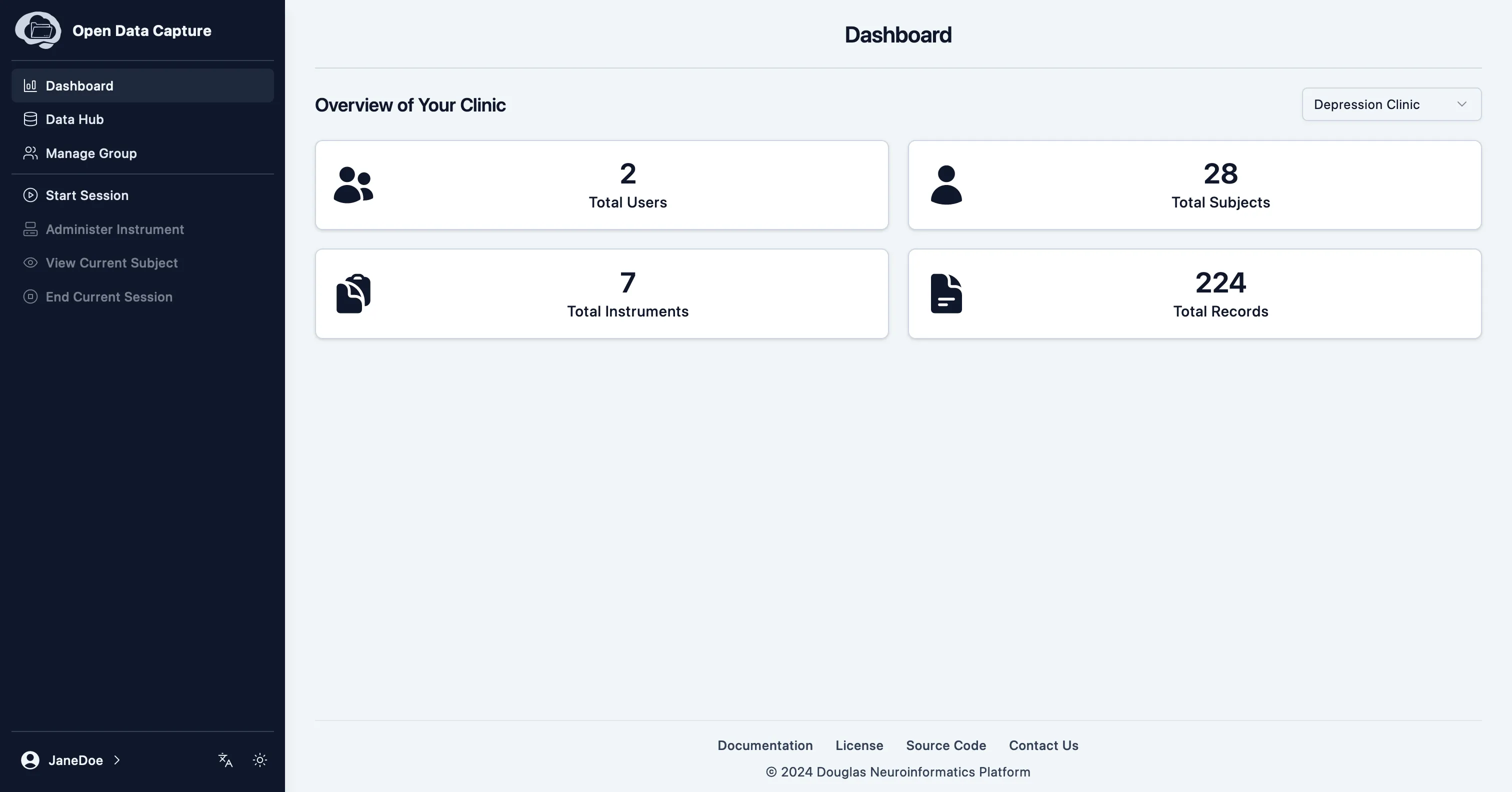
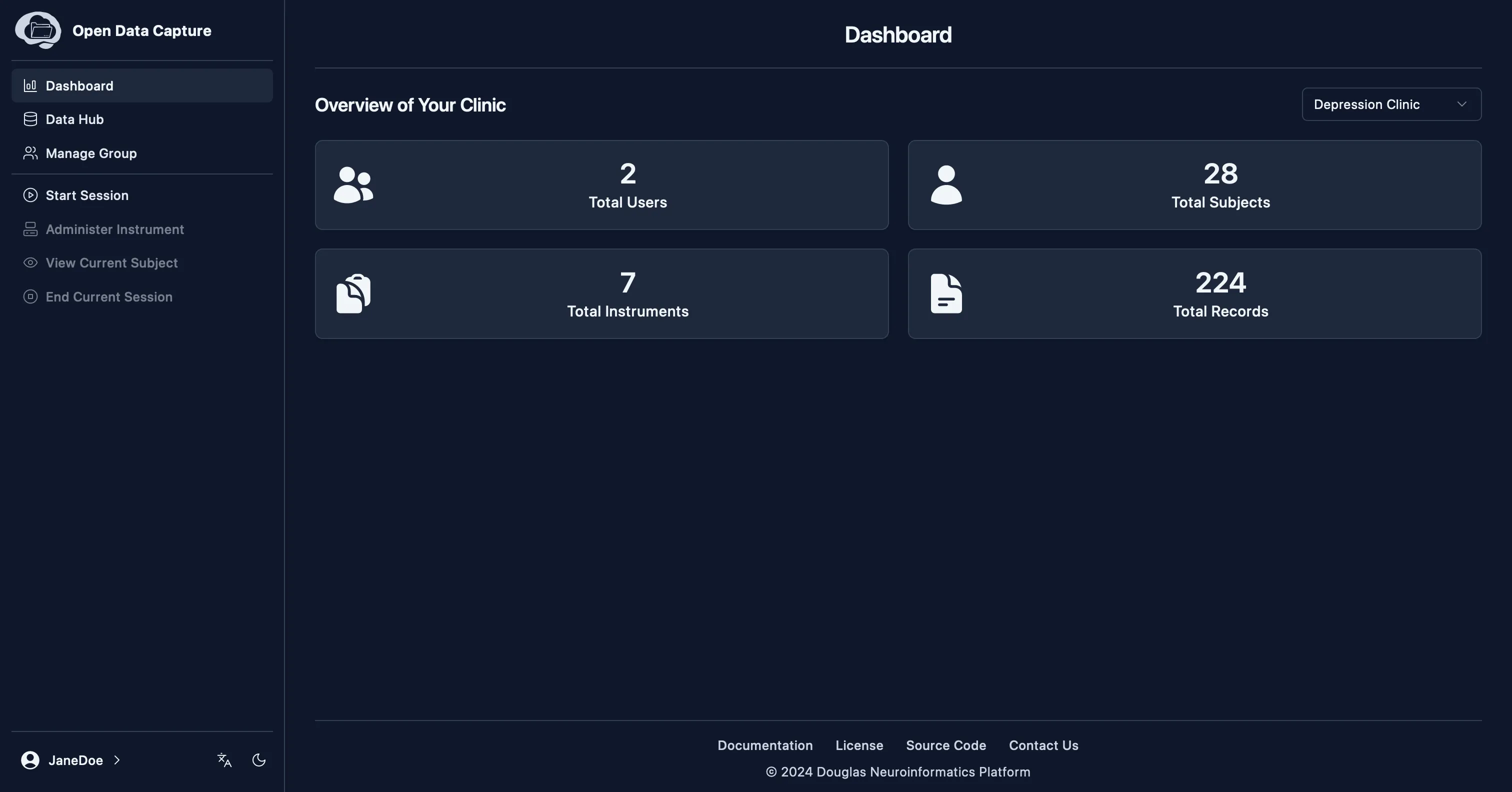
ODC only shows navigation items that your account can access.
- Dashboard shows an overview of data for the selected group. The default Standard User role does not see Dashboard.
- Data Hub finds subjects, reviews records, exports data, graphs measures, and manages assignments. The default Standard User role does not see Data Hub.
- Start Session begins a session for a subject.
- Accessible Instruments shows the instruments available for the selected group and current session.
- Upload imports form instrument data from CSV.
- Manage Group configures group-level settings. The default Standard User role does not see Manage Group.
Select a Group
The selected group controls which instruments and data you see.
Group managers use the group selector on Dashboard to change the selected group.
Configure a Group
Group configuration is done in Manage Group.
The default Standard User role does not see Manage Group.
-
Open Manage Group
Use Manage Group to control the instruments and subject settings for the selected group.
-
Select accessible instruments
Accessible instruments are the instruments shown to group members in Accessible Instruments.
-
Review subject display settings
Set the preferred subject ID display length.
-
Review age settings
Turn minimum age validation on or off. When it is on, set the minimum age.
-
Review subject identification settings
Choose the default identification method and configure the ID validation pattern and validation messages.
Start a Session
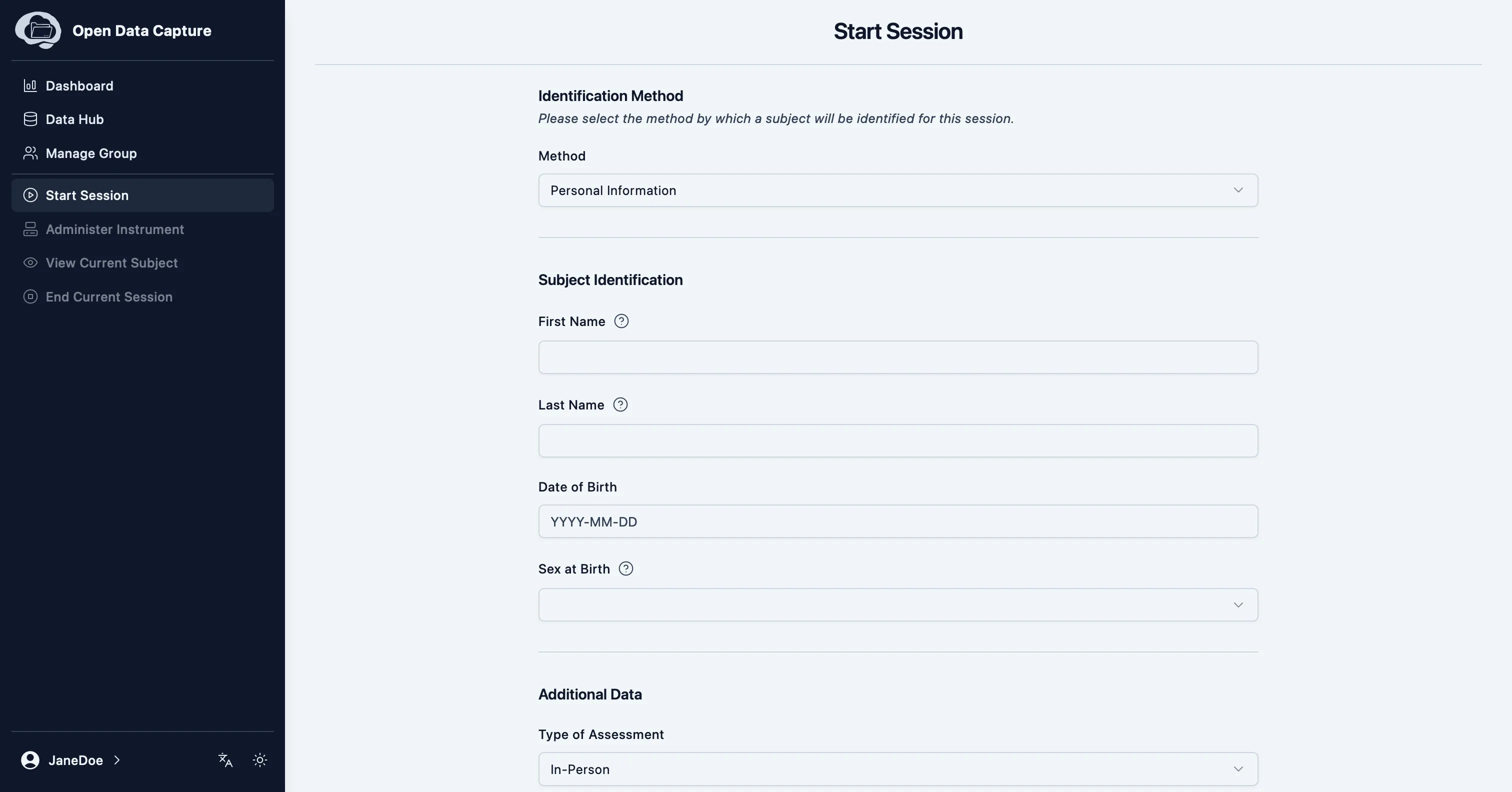
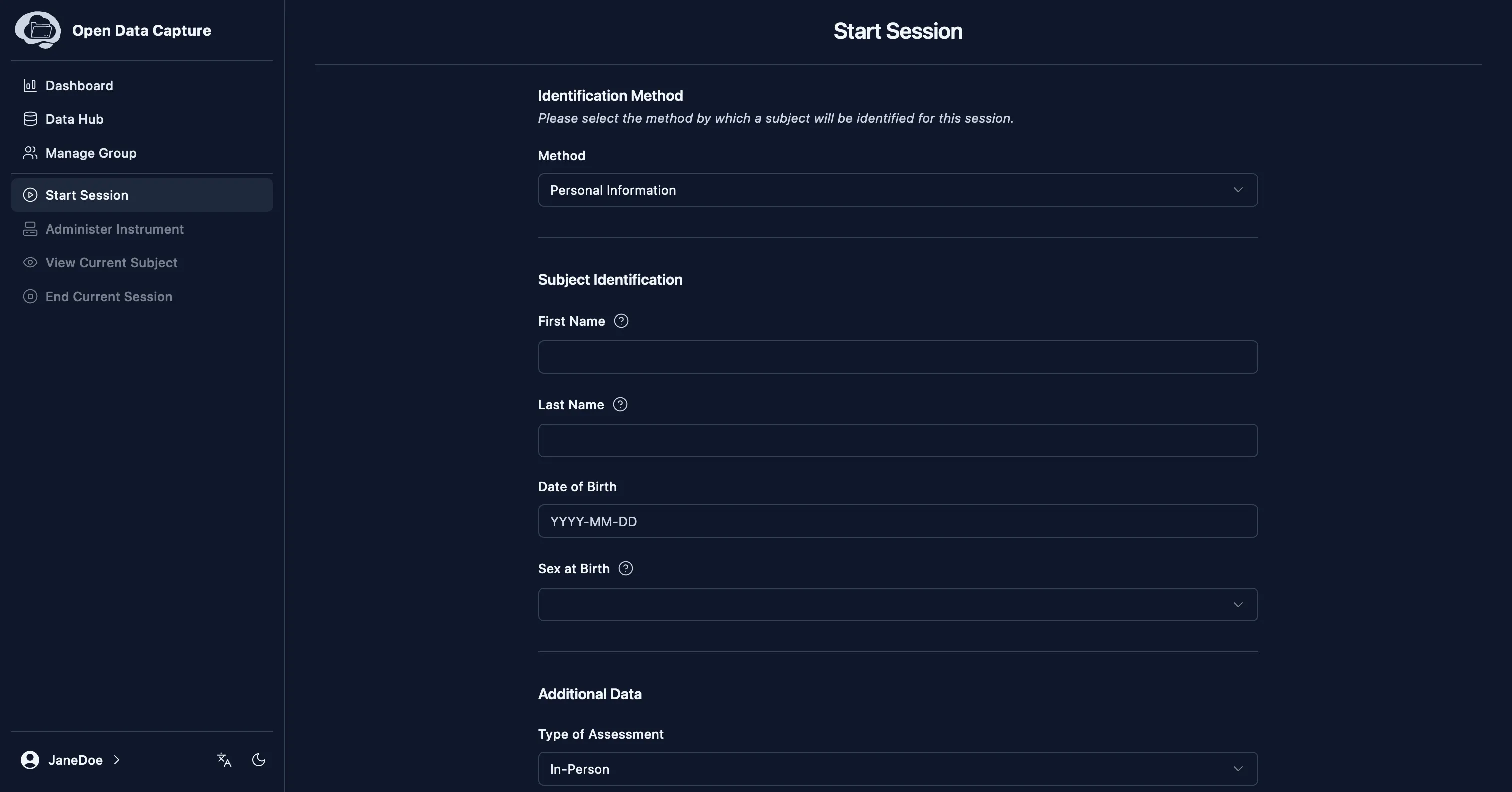
Use Start Session to begin work with a subject.
-
Open Start Session
Start Session is available to group managers and standard users.
-
Identify the subject
ODC supports custom IDs and auto-generated IDs based on personal information. The selected group’s settings determine the default method.
-
Choose the session type
Use an in-person session for new data collection. Use a retrospective session when entering data that was collected earlier using another system.
-
Confirm the session is active
After the session starts, ODC shows the active session in the sidebar.
ODC allows one active session at a time. Starting a new session will automatically end an existing session.
Administer Instruments
Use Accessible Instruments after starting a session.
Accessible Instruments shows the instruments selected for the current group. Select an instrument and complete it.
Review and Export Data
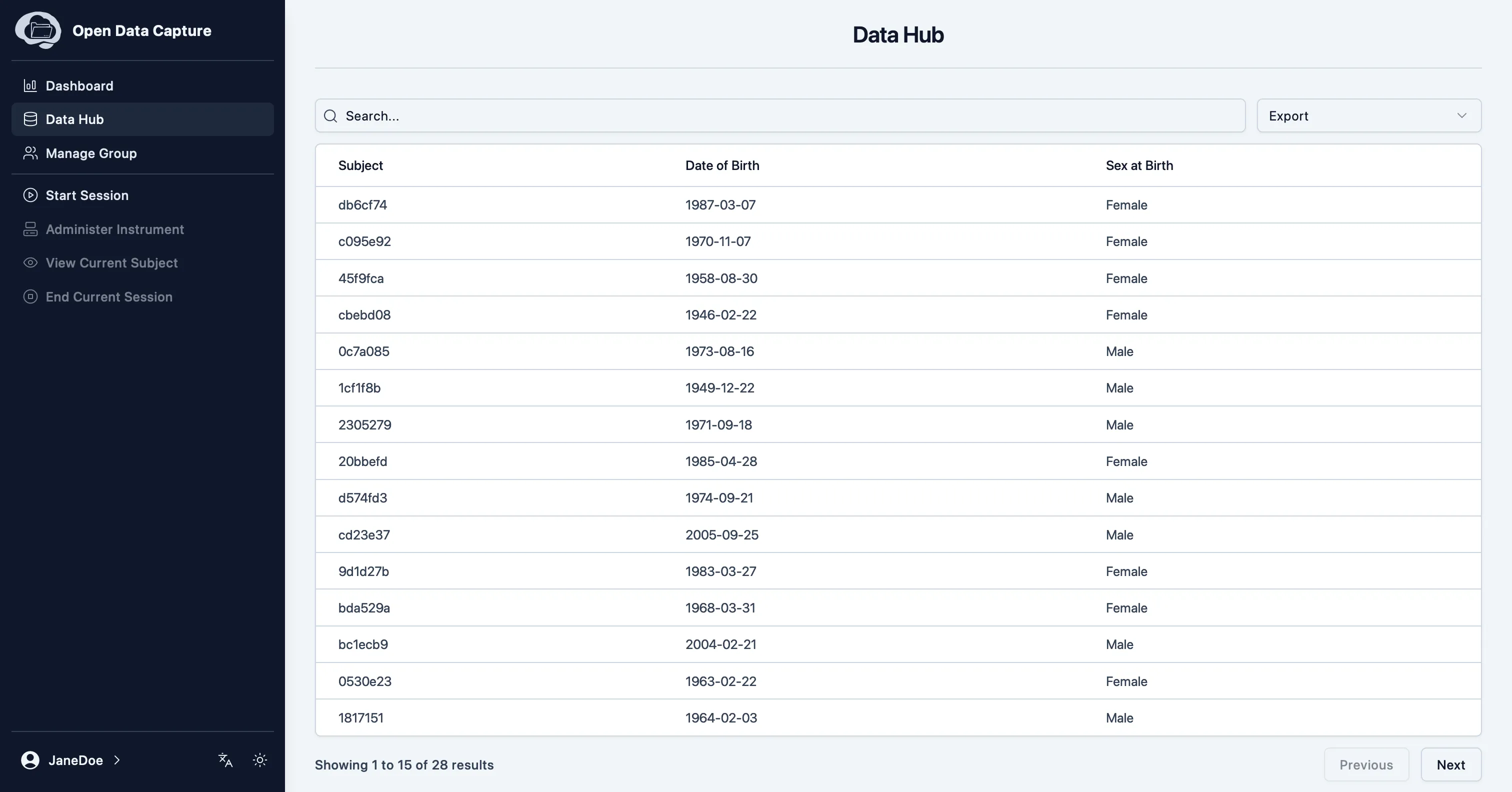
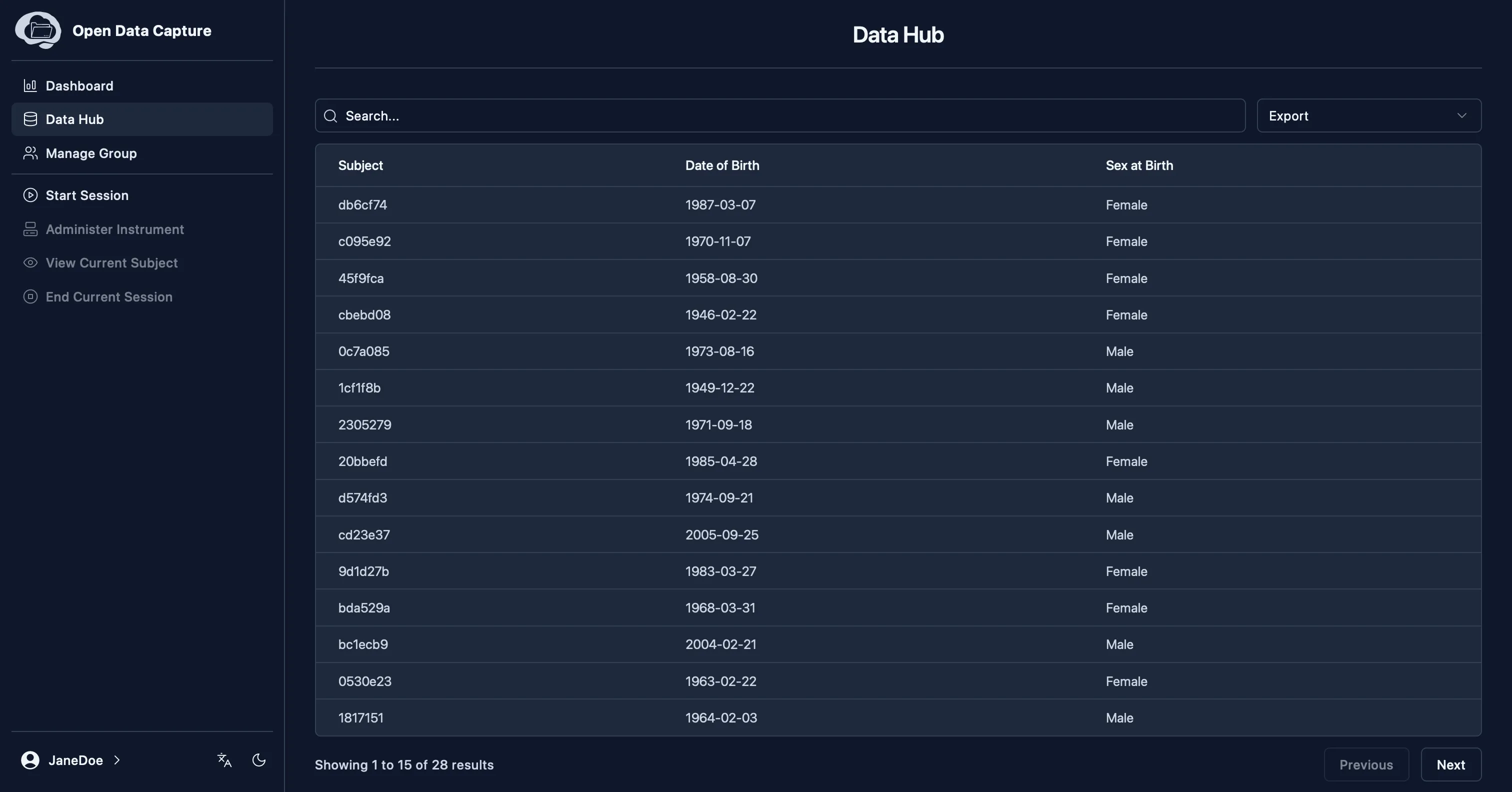
Use Data Hub to find subjects, review records, export data, and graph measures.
The default Standard User role does not see Data Hub.
For more detail, see:
Upload Data
Use Upload to import CSV data for form instruments.
Upload appears the feature is enabled by the instance admin and your account can read subjects and create instrument records. The default Group Manager and Standard User roles satisfy those permissions.
For more detail, see How to Upload Data.
Assignments
Assignments are instruments that a subject completes outside the main ODC web app.
The Assignments tab appears on Data Hub subject pages when gateway support is enabled. Group managers can create and manage assignments for their groups. The default Standard User role does not see Data Hub and does not have assignment permissions.
When to Ask an Admin
Ask an admin for:
- Creating users
- Creating groups
- Adding or modifying instruments
- Changing permissions
Troubleshooting
- I cannot find an instrument: Ask a group manager to check the group’s accessible instruments.
- I see the wrong instruments or data: A group manager should confirm the selected group on Dashboard.
- I do not see Dashboard: The default Standard User role does not see Dashboard.
- I do not see Data Hub: The default Standard User role does not see Data Hub.
- I do not see Upload: This feature is disabled on your instance or your account does not have the required upload permissions.
- I do not see Assignments: Gateway support is disabled or your account does not have assignment permissions.